Google Chrome’s Cheat Sheet Took Codex From 49% to 85% on Web Tasks
Google Chrome’s Modern Web Guidance lifted Codex’s web benchmark score. We tried its newest menu advice on a keyboard problem the toolkit’s own scanner missed.
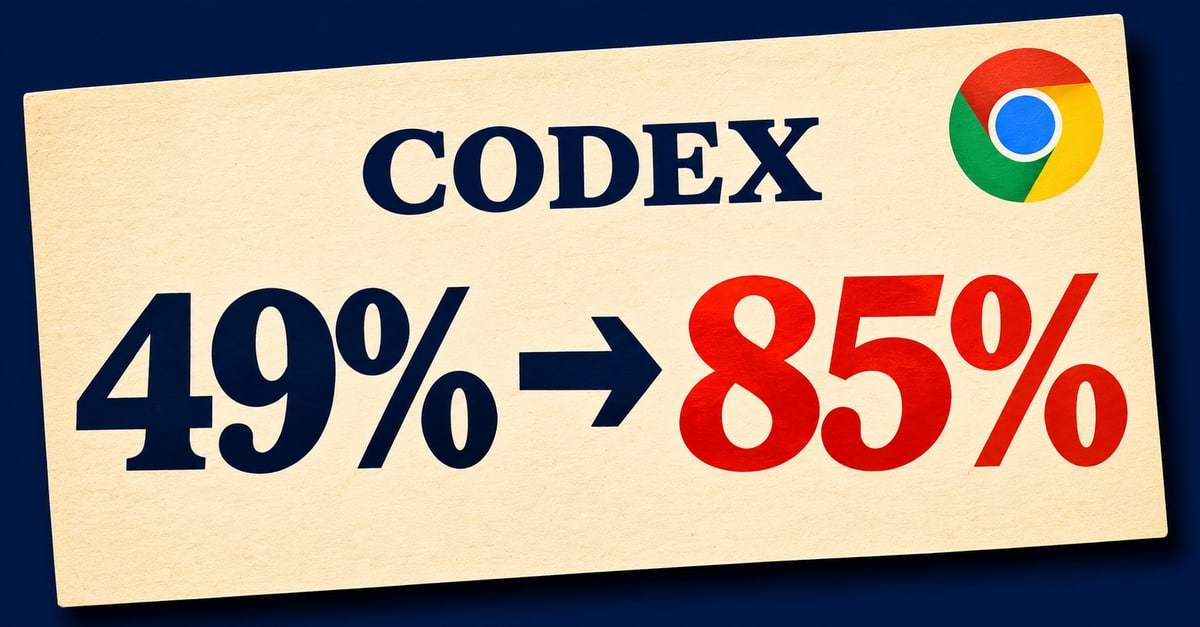
Google Chrome’s web team gave Codex the same coding tasks twice. With its usual setup, Codex passed 49% of the checks. With Modern Web Guidance, it passed 85%. The model stayed the same. What changed was its access to a shelf of instructions written for the web platform. We tried the toolkit on a much smaller problem. A file menu worked with a mouse, yet someone using a keyboard could tab straight past the file without ever finding Rename. Version 1.0.2 results
Shubham Saboo’s November 25 post put the open-source project back in developers’ feeds and suggested pairing it with Gemini 4 Neon. The release history fills in two details. Chrome previewed the work at Google I/O in May, shipped stable version 1.0 on November 10 and released 1.0.2 on November 23. That last update added the context-menu guide we tested. You can try it from a terminal before choosing a model or configuring an agent. Chrome’s launch announcement · Project quickstart
What Google Chrome gave AI coding agents
Imagine asking an agent to add a menu to each file in a list. It can make Rename appear beside your pointer, wire up the click handler and produce a convincing demo. You may even approve the pull request after trying it yourself. Who asked how a person on a phone discovers the same action? Who checked where keyboard focus lands after the menu closes? Those questions rarely make it into a one-line feature request.
Modern Web Guidance packages decisions like these into searchable guides. The coding agent can look up the job in ordinary English, retrieve the relevant instructions and bring the browser support notes into the conversation while it writes the component. Google Chrome, Microsoft Edge, Mozilla Firefox and MDN steward the project alongside community contributors. At the 1.0 launch, it shipped 203 use-case guides covering 250 platform features. The published package carries the Apache 2.0 license. Stable release inventory · Project license
The browser policy matters as much as the model. A developer building for managed laptops can choose a different minimum browser version from someone maintaining a public benefits form. Put that support policy in the project instructions so the agent can choose a native feature, supply a fallback or keep an existing implementation. Without a stated target, Chrome’s documentation says the guidance defaults to Baseline Widely available, which means a feature has been interoperable across the core browsers for at least 30 months. Getting started and setting browser targets
What the 85% actually measures
For each task, the project starts an agent with a small web app and a feature request. It runs the pairing once with the skill available and once without it. The prompt leaves the agent to decide when to consult the guides. Playwright then opens the result in a browser and checks requirements such as focus movement, rendered styles and markup. The percentage counts individual checks passed. One task can pass several checks and fail another. Evaluation methodology
- Codex CLI went from 49% to 85% with GPT-6.1 Sol.
- Claude Code went from 54% to 94% with Claude Opus 5.5.
- Antigravity CLI went from 56% to 97% with Gemini 4 Argon.
All three entries in the November 23 release cover 229 tasks. Codex and Claude Code each had 1,961 checks. Antigravity had 1,955. Codex gained 36 percentage points. The Gemini result belongs to Argon. Saboo’s suggestion to try Neon is a separate idea. The project publishes its graders, so a team deciding whether to adopt the skill can look up a task it actually ships. A reader choosing a model for a checkout redesign would learn more from the focus and form checks than from comparing the three totals. Versioned benchmark table · Public evaluation dashboard
We tried the new guide on a right-click menu
Our test page had one file, Budget.csv, two actions and a Help link. Right-clicking the file opened a popover containing Rename and Duplicate. On a fresh load in desktop Chrome, we pressed Tab. Focus landed on Help. Neither action was reachable. We ran the release’s legacy-scan on the one-file example. It reported zero findings and listed 52 active rules across 38 guides. That makes sense once you see what the scanner looks for. It matches recognizable patterns in source files. A missing way into a menu can escape those rules entirely. How the modernization scanner works
We ran the following commands with Node.js 22.22.3. The project requires Node.js 22 or later. Pinning the package here reproduces the version behind the story. The first command returned context-menu as its top match. The second printed the guide, including a fallback for browsers that support popovers but lack newer invoker commands. Project quickstart · Versioned context-menu guide
npx --yes modern-web-guidance@1.0.2 search \
  "show a context menu for a file row with keyboard and touch"
npx --yes modern-web-guidance@1.0.2 retrieve context-menu
The guide asks a practical question. If those actions are available only in this view, where is the visible button? We kept right-click working and added a button beside the filename. Here is the part that gave the keyboard a way in. The existing popover had the matching ID, and its Rename button already had autofocus. MDN’s popover examples
<button type="button" popovertarget="file-actions"
        aria-label="Actions for Budget.csv">Actions</button>
On the second page, the first Tab reached Actions for Budget.csv. Enter opened the popover and put focus on Rename. Escape closed it and returned focus to Actions. We reopened it, pressed Enter on Rename and saw our test page report the selection. The scanner again returned zero. Both pages earned the same scan result. Only one let us choose Rename without a mouse. We tested this keyboard sequence in desktop Chrome. A touch-device check, other supported browsers and assistive technology still belong in a product review.
What happened on MetaMask’s real pull requests
The Chrome team also highlighted MetaMask’s review bot on November 25. One of its findings survives a look at the actual code. A contributor built an FAQ that inserted an answer into the page only when its panel was open. Imagine searching the page for a word you know appears in an answer. With the answer collapsed, the browser had nothing to match. After the bot commented, the author moved the FAQ to native <details> and <summary> elements. The answer stayed in the document when its panel closed. MetaMask pull request · Chrome’s case study
Over five weeks, MetaMask’s bot looked at roughly 480 pull requests and commented on 64. The Chrome social post gives a 45% figure. The linked case study’s current table lists 54 fixed and three partly fixed out of 102 findings on feature and fix pull requests. The bot stayed advisory, leaving maintainers to decide whether each suggestion belonged in that change. For a team piloting it, we’d count findings that led to a patch someone kept, then track how often reviewers had to explain why working code should stay. MetaMask results and review setup
What to do on your next frontend pull request
Pick a component with a failure you can describe from the user’s side. For a file menu, write down the action you expect to reach, the key that opens it and where focus should return. Try that sequence on the current build. Then give your agent the component, your oldest supported browser and the English description of the task. Ask which guide it retrieved and which fallback it chose. For Claude Code teams, our guide to testing a skill on a known regression walks through how to tell whether a skill was actually invoked.
If you want the agent to find the guides on future tasks, run npx modern-web-guidance@latest install and follow the interactive setup. For a one-off review, the two pinned lookup commands above are enough to read the advice. Reopen the changed component and repeat the original sequence before approving the diff. In our file list, that meant we could Tab to the file actions, press Enter, find Rename, then press Escape and land back on the same file’s button. Installation options